
How to redact a screenshot
Cover sensitive information with opaque blocks, then export and inspect a flattened PNG before sharing.
Open redaction tool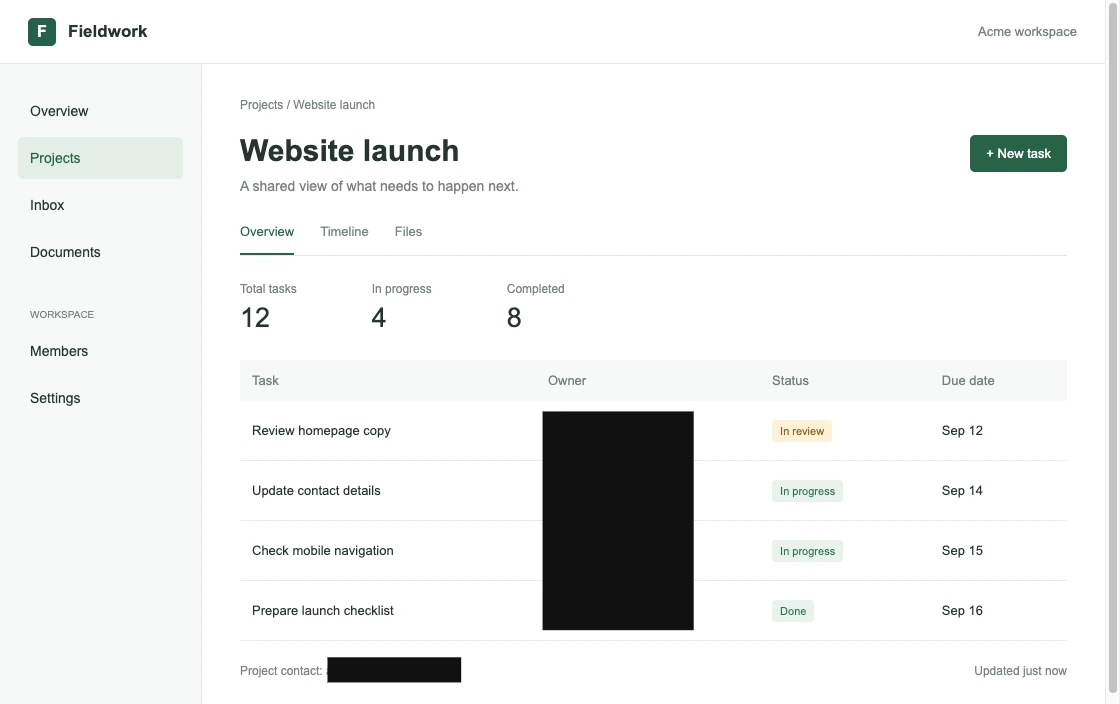
Choose an opaque cover
Blur softens pixels; pixelation groups them into blocks. Both can preserve clues about short text, numbers, or familiar patterns. A solid black rectangle fully covers the selected area. Leave a small margin around the information so letter edges and shadows are covered too.
Check the whole screenshot
Review names, email addresses, account numbers, addresses, faces, QR codes, browser tabs, notifications, and sidebars. Crop out unrelated areas. A single visible identifier can reveal information even when the main text is covered.
Export a new, flattened image
The editor retains undo history while you work. Copy image and Download PNG render a new bitmap containing the visible result, without editable layers or the original file metadata. Share that export, not your original screenshot. Reopen it and zoom in to verify every cover.
Understand the limits
The tool does not automatically find sensitive information or guarantee that a screenshot is safe to publish. Context can still identify someone. Editing history remains in this browser tab until it is replaced or closed; protect access to your device as well.
Privacy policy